Combine Images
Merge elements from multiple images into a single cohesive result. Place a product in a new environment, add an object from one image into another, or create entirely new compositions.
Combining Images
Upload multiple images to the chat and describe how to merge them:
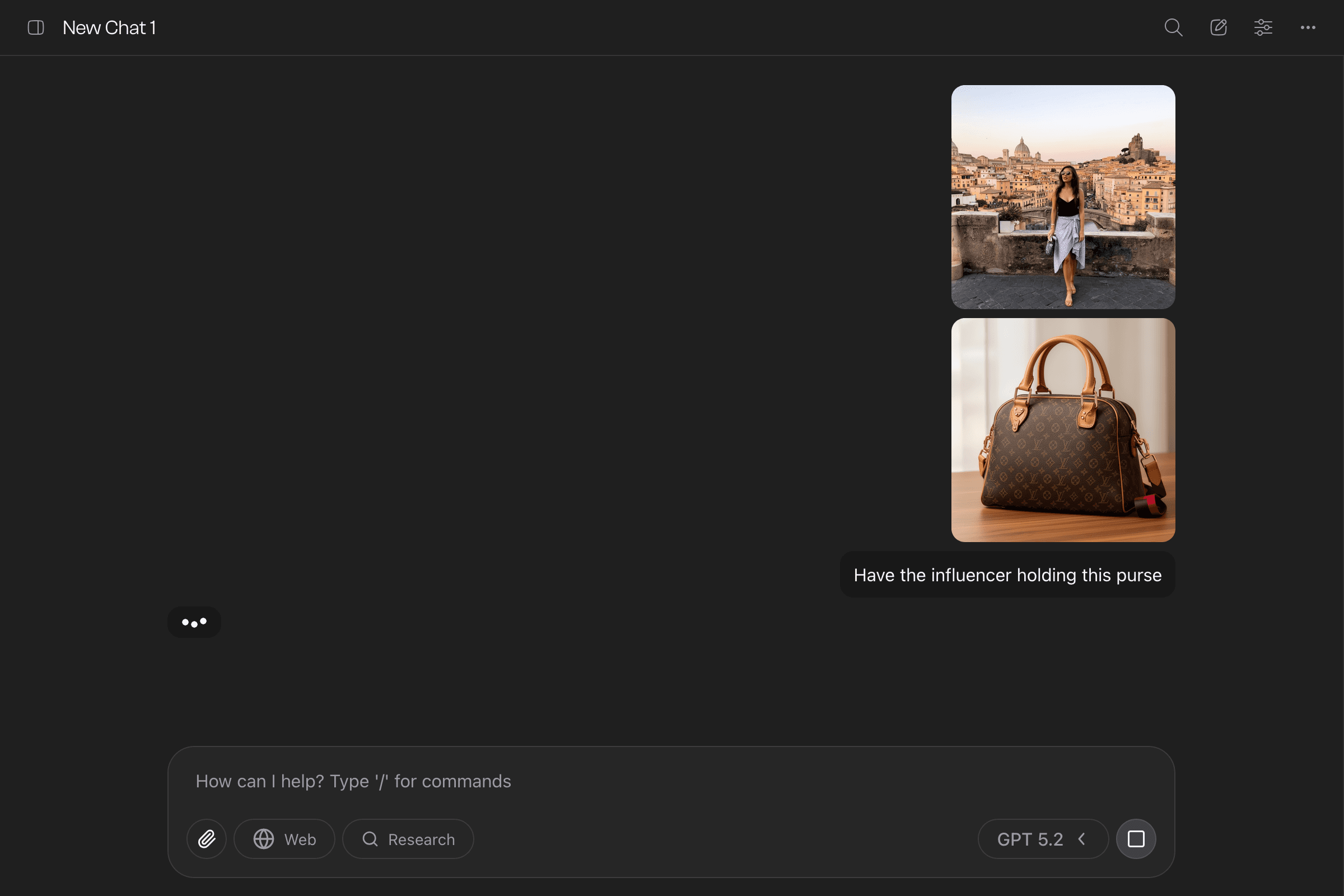
Make the influencer hold this purse. Zoom out for a full body view.The AI combines your images and opens the gallery with the result.
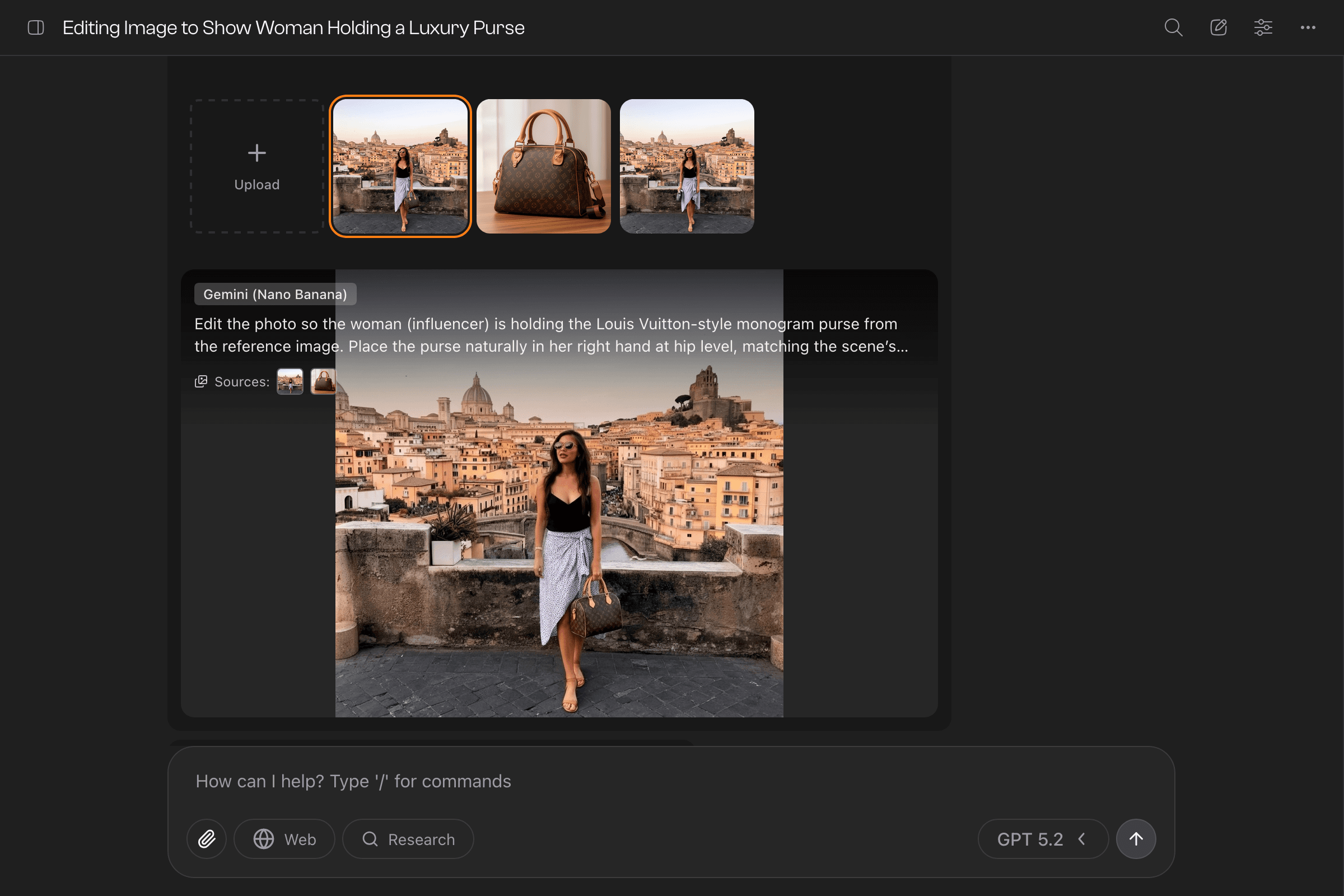
You can also combine images already in your gallery—click “Edit” on each image you want to use, then describe how to merge them.
Keep Iterating
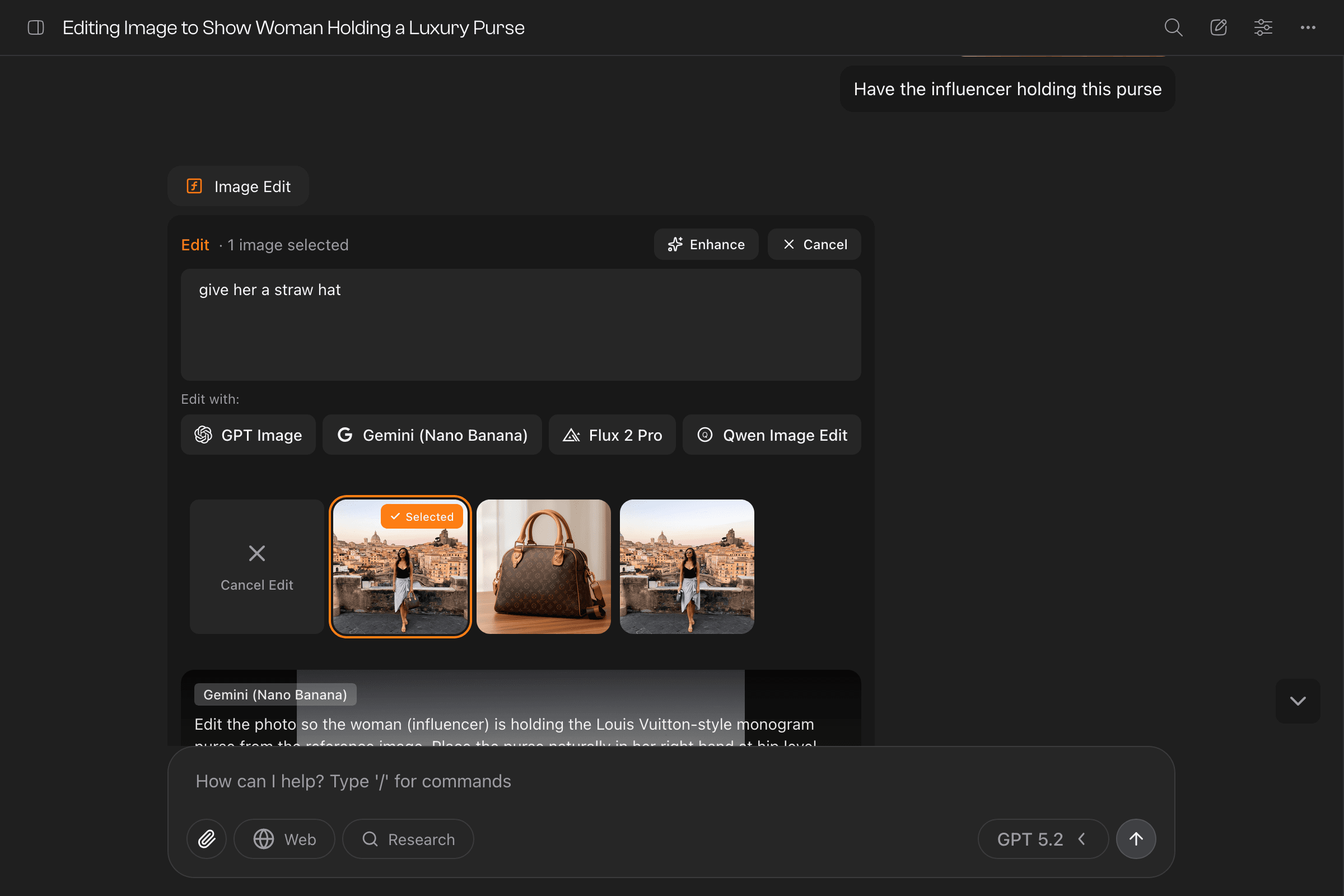
From the gallery, continue refining:
- Try different models — Each interprets combinations differently
- Adjust your instructions — Be more specific about placement or scale
- Add more images — Select additional sources to pull elements from
Tip
The order you select images can matter. Some models treat the first selected image as the primary canvas.
Tips for Better Combinations
- Match lighting: Images with similar lighting blend more naturally
- Be specific about placement: “Have the woman hold the mug in her right hand”
- Consider scale: Mention if objects need resizing
- Describe depth: Note when something should appear in front of or behind another element
Example Prompts
Product Placement
Make the model wear the jacket from the second imageScene Building
Add the vase of flowers to the table in the living roomCharacter Interactions
Show the two people shaking hands in front of the officeEnvironment Swaps
Put the car on the beach from the second imageLast updated on