The image gallery is now an editor
Create, edit, replace one area, extend the edges, or combine sources — from one panel inside the conversation.
Bearly's image gallery is now an editor. Ask a chat for an image and the editor opens in the conversation. Everything after that happens in the same panel: make another image, change the one you have, replace a single area, add space around the edges, or combine several pictures into one.
One bar, five actions
A bar across the top picks the action. Create image works from a description alone. Edit image, Change area, Extend edges, and Combine images work from pictures already in the chat. Generated, edited, and uploaded images share one strip below the canvas, so a photo you upload is as available as a result Bearly just made.
Say you asked for an illustration to run alongside a post about city delivery, got a cargo bike at dawn, and decided the light was wrong:
Turn the dawn sky into late afternoon light. Keep the bike, the parcels, and the street exactly as they are.
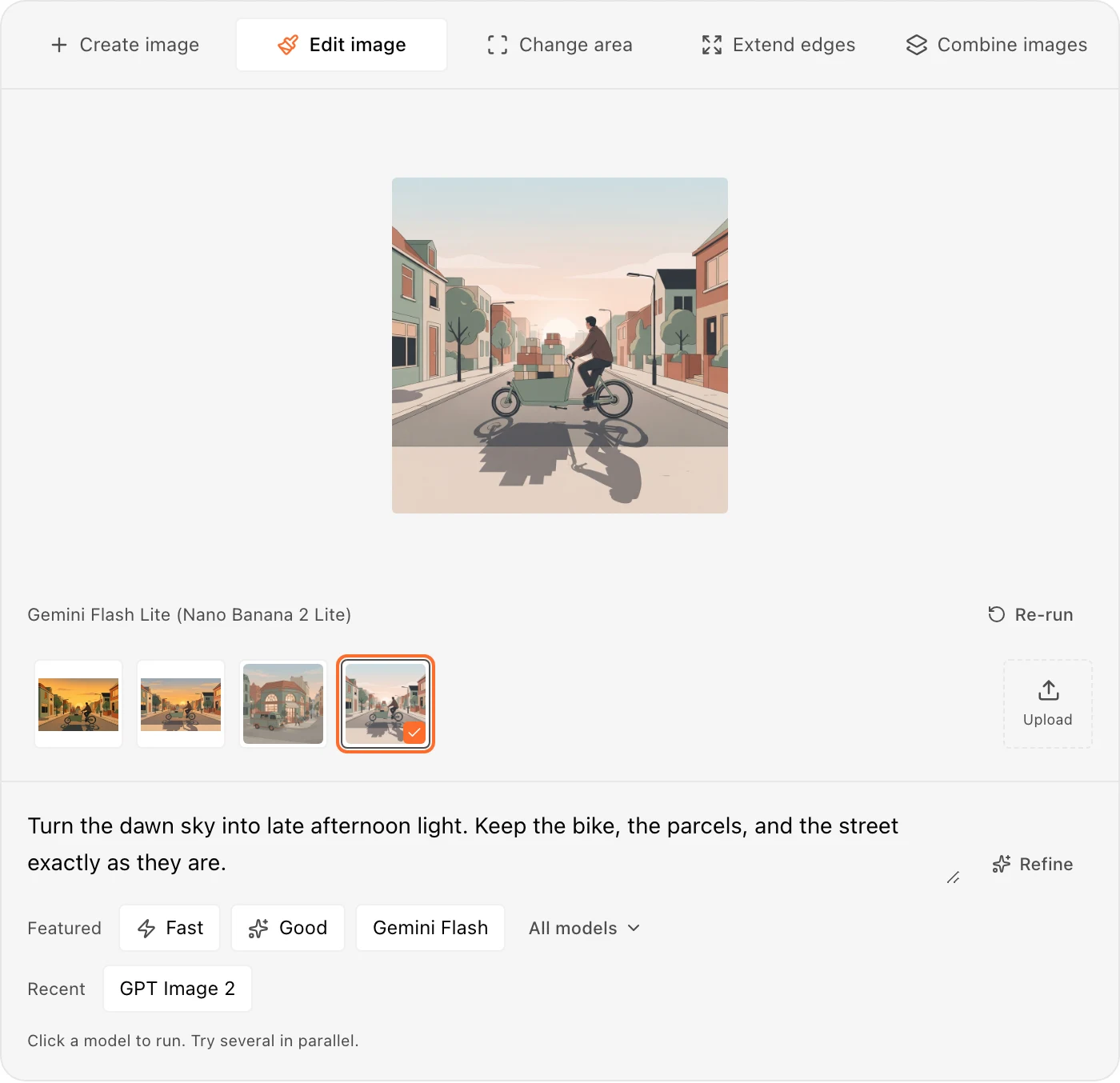
Pick the source, type the instruction, click a model. The result arrives in the strip beside the original. Nothing you were working on moves: the source stays selected and the instruction stays in the box, so trying a second model costs one more click.
Change one part instead of the whole picture
Editing by description asks a model to reimagine the whole frame. Often you only want one part of it to change.
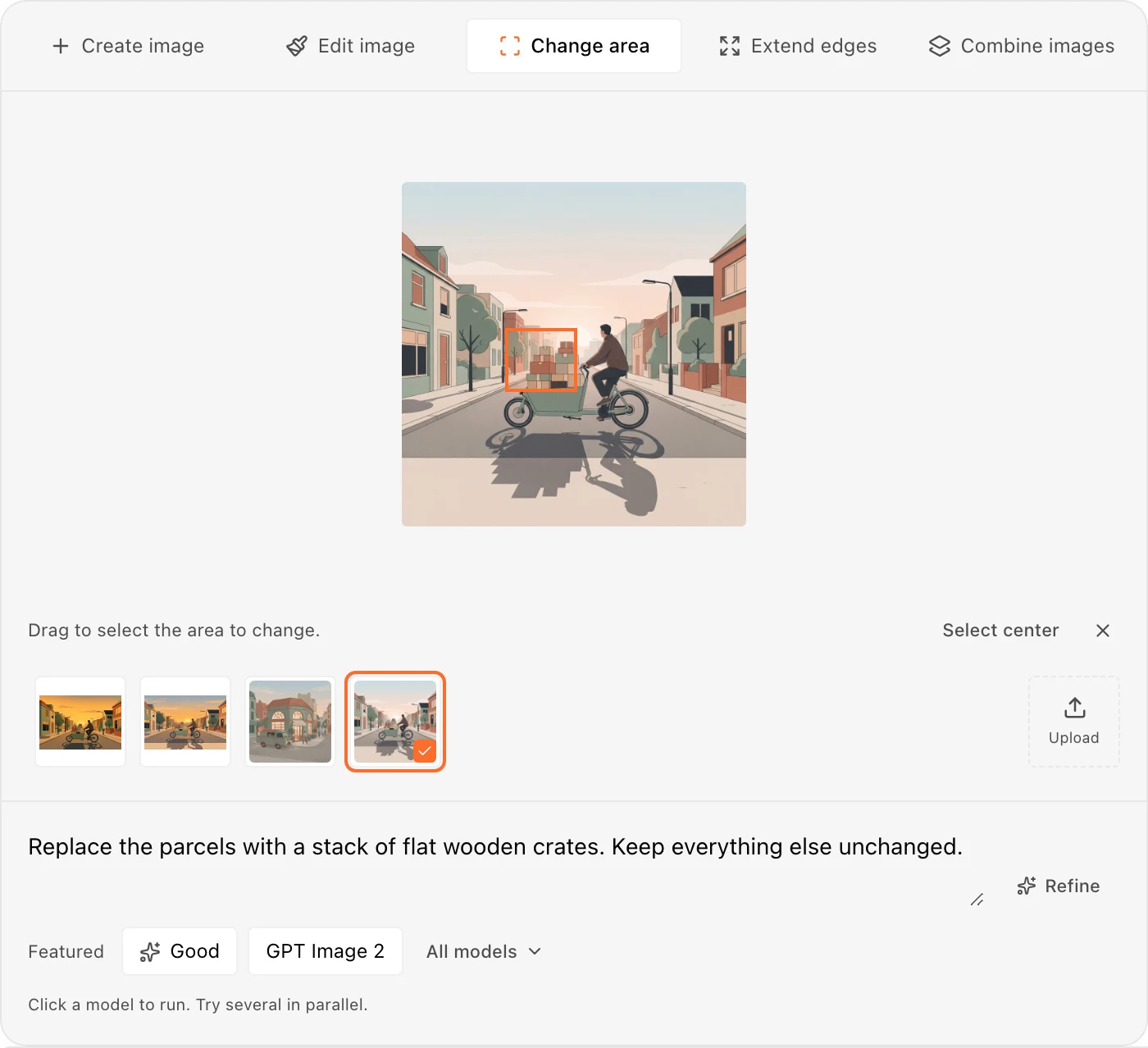
Change area lets you drag a rectangle over the part to replace, or select the center, and then describe what belongs there.
Extend edges works outward instead. It pads the picture by a quarter of its width and height on every side, then asks the model to carry the scene into the new space. The dimensions that come back depend on the model.
Both are still generative edits. The selection tells the model where to work; it does not guarantee that everything outside it comes back untouched. Check faces, text, and product details at full size before you use a result.
Not every model accepts a selection, which is why Fast drops out of the row when you switch to Change area.
Runs that leave your work alone
Every click on a model starts its own run from the inputs as they stood at that moment. Click three models and you get three images. Click the same model twice and you get two attempts at the same request, which is what you want when the first one was nearly right.
The editor stays usable while they run. Results only ever arrive in the strip; they never take over your draft, your selected source, or your area selection. Creating and editing hold separate drafts, so switching to Create image and back does not cost you the instruction you were halfway through writing.
A run you started here can be canceled from its thumbnail, and a failed one keeps its message and a Try again button. A run the editor did not start is different. It shows as Pending, because the editor cannot check whether work on another device is still going. Dismiss takes that entry off the list without stopping the work or deleting a saved image, and a finished result can still turn up afterwards.
Which model to click
Most of the time you should not have to think about this. Fast and Good are the two shortcuts: quick drafts and higher quality. They are curated picks rather than a live ranking, and neither is a promise about how long any particular run will take.
Below them, Recent brings back models you have finished a run with. All models lists every model for the current action, with a short note beside any that cannot handle what you have selected. Refine rewrites your description into something more specific; Use this takes the suggestion and Dismiss keeps your own wording.
Each run spends AI credits, repeats included.
Available in Bearly chat
The image editor is part of Bearly chat on web, desktop, and mobile. Ask for an image, or attach one and describe the change, and the editor opens where the reply would have gone. The newest image reply shows the editor. Earlier image replies offer Go to latest image edit, which jumps forward to it.
Team administrators can turn image tools off for managed accounts under the Images policy.